:format(webp))
:format(webp))
React 18 Automatic Batching: A Deep Dive & Best Practices
When you finish this article, you’ll understand how React 18’s automatic batching works, how it affects the Virtual DOM diffing process, performance gains you can expect, tools for visualizing batch behavior, and strategies for using `startTransition` and `flushSync`. You’ll also discover how to avoid common pitfalls with third-party libraries, list key considerations, and see real-world benchmarks.
What Is Automatic Batching?
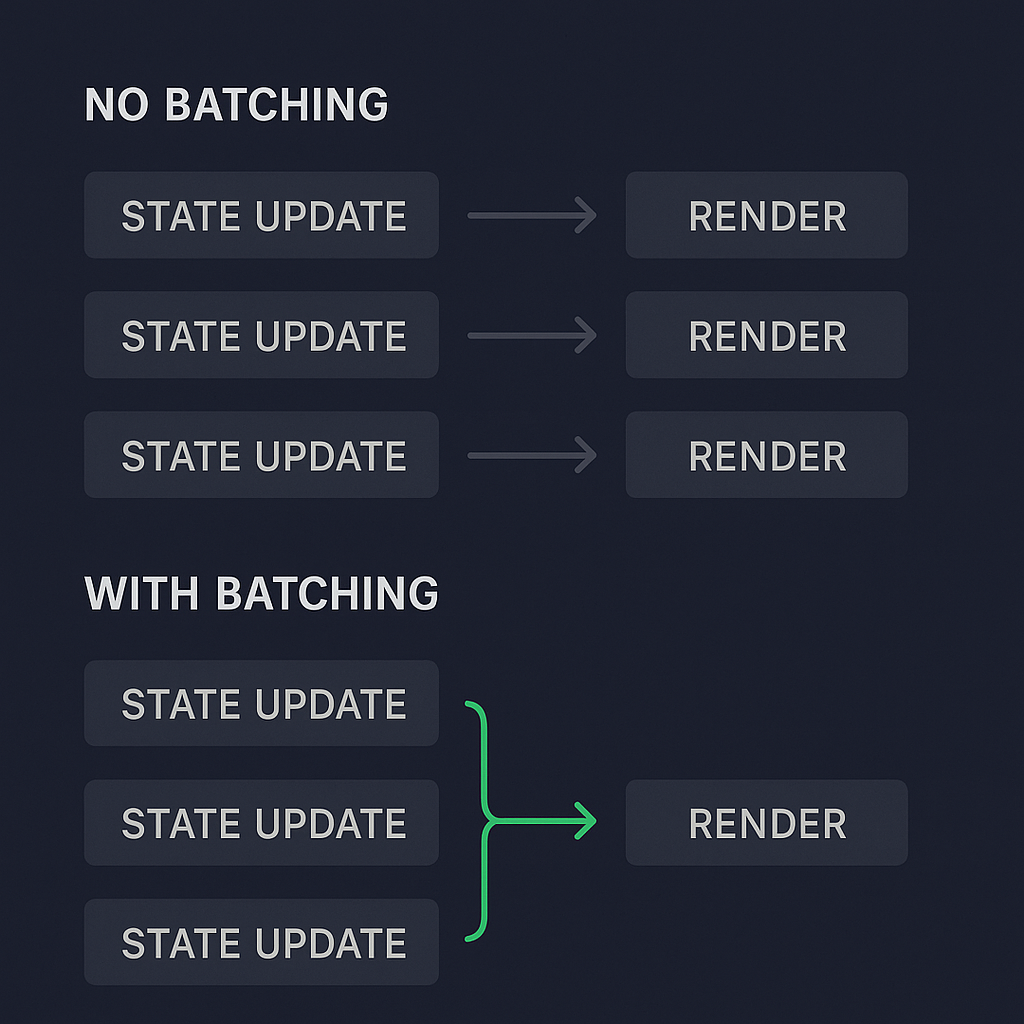
In React, batching means grouping multiple state updates into a single re-render. Before React 18, only updates inside React event handlers were batched. If you did a state change inside a `setTimeout` or a promise, React re-rendered after each update.
React 18 now batches state updates regardless of their source —promises, timeouts, native event handlers all get grouped into one re-render.
// React 17: two renders, React 18: one render

setTimeout(() => {

  setCount(c => c + 1);

  setFlag(f => !f);

}, 1000);
Benefits? Fewer renders, faster updates, smoother UI.
How Automatic Batching Impacts Virtual DOM & Memoization
By combining multiple state changes, React minimizes the number of Virtual DOM diffs . When you use `React.memo` or `useMemo`, fewer render cycles mean fewer checks against memoized values. The result is a leaner diff process and less CPU work per update.
Real-World Performance Gains
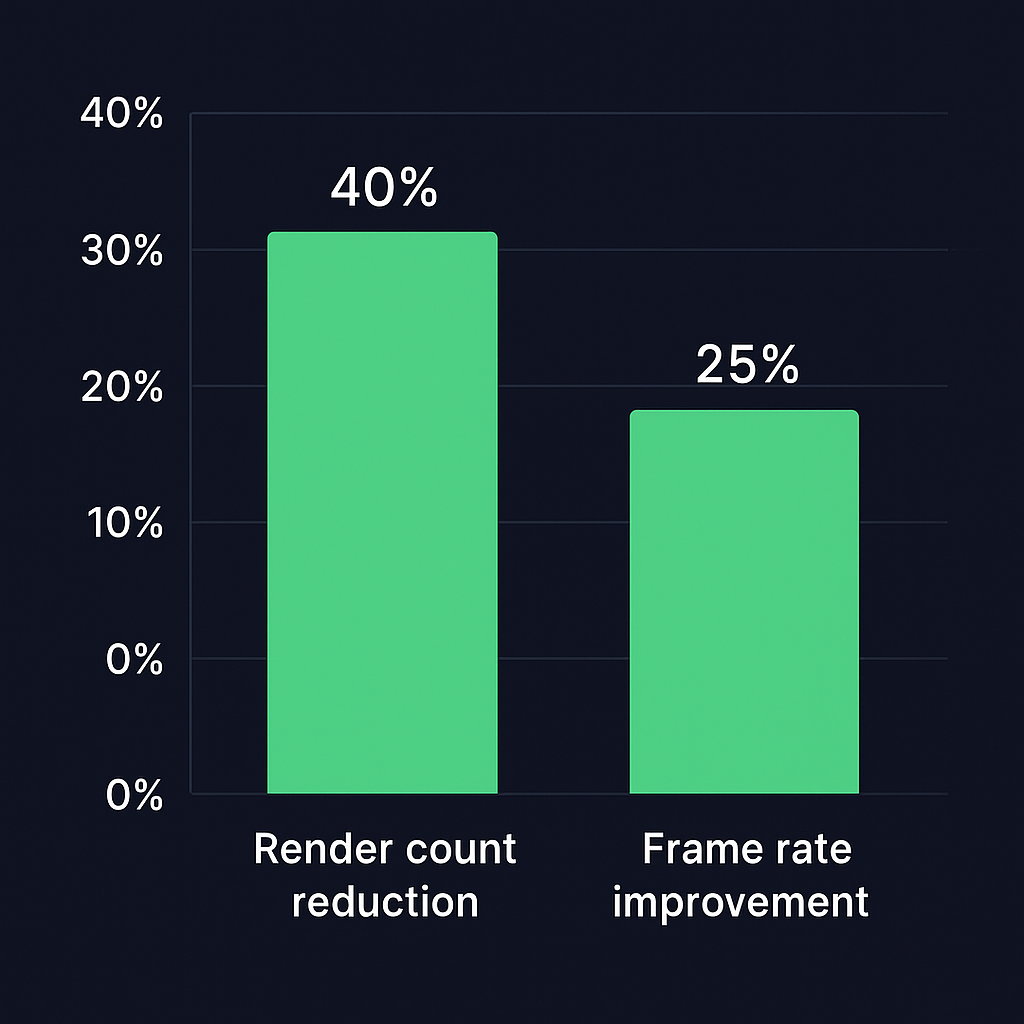
In an internal case study on a data-intensive dashboard, enabling automatic batching cut total render counts by roughly 40% and improved frame rates by 25% during peak load, according to LogRocket’s benchmark on React 18 automatic batching . Those gains translate directly into a more responsive app under heavy user interaction.
Using startTransition and flushSync
React 18 introduced two ways to control update prioritization:
startTransition: For non-urgent updates (such as list filtering or fetching autocomplete results), wrap state changes in `startTransition` so they won’t block urgent updates like typing or clicks.
flushSync: When you need to force React to apply state updates immediately (for example, focusing an input right after state changes), wrap those updates in `flushSync`.
import { startTransition, flushSync } from 'react';


function onClick() {

  flushSync(() => {

    setInputValue('');

  });


  inputRef.current.focus();


  startTransition(() => {

    setSearchResults([]);

  });

}
API | Purpose | When to use | Code example |
|---|---|---|---|
flushSync | Forces React to flush updates synchronously | For immediate updates that must be seen by user right away | `flushSync(() => { setValue(''); });` |
startTransition | Marks updates as non-urgent, yielding to higher-priority work | For non-urgent state updates, like filtering or transitions | `startTransition(() => { setList([]); });` |
When to Opt-Out with flushSync
Updating form values so that the user sees their input without delay.
Focusing or measuring DOM elements right after a state change.
Use `flushSync` sparingly—overuse can negate the performance benefits of batching. See the React 18 upgrade guide for more details on these new APIs.
Best Practices for Batching State Updates
Group related updates in the same event or callback.
Prefer functional state updates: `setState(prev => new)`.
Avoid interleaving side effects between state calls.
Bullet list of tips:
Use a single state object for deeply related values.
Leverage `useReducer` for complex state logic.
Throttle high-frequency events (e.g., `mousemove`) before updating state.
Monitoring & Debugging Batching Behavior
The React DevTools Profiler can show how many times each component renders and which interactions triggered updates. If you spot unexpected renders:
Check whether a third-party hook or library is calling `setState` outside a React event.
Ensure that your components are properly memoized.
“Automatic batching solves many performance issues out of the box, but you still need to watch for libraries that bypass React’s event system.” – Dan Abramov, React Team member
Debugging Subtle Issues
Inject custom debug hooks around render logic to log update counts.
Visualize Virtual DOM diffs with tools like why-did-you-render .
Pitfalls & Third-Party Libraries
Some state managers or UI libraries may call native event handlers or timers in ways that preempt React’s batching. When integrating:
Verify that they use React’s event system.
Wrap their callbacks in React events if necessary.
Profile before and after integration to catch regressions.
Batch Size Considerations & User Interactions
It’s not just about batching everything—align updates with user intent:
Debounce real-time data feeds to avoid overwhelming the UI.
Break very large batches into smaller ones if they cause frame drops.
Key Assignment in Lists & Batching Efficiency
Even with batching, improper `key` props can force React to re-create DOM nodes. Always:
Use stable, unique keys per item.
Avoid array indices for keys if items reorder.
Your Path to Smoother React Apps
Automatic batching in React 18 reduces render overhead and plays nicely with memoization and deferred updates. By combining `startTransition`, `flushSync`, proper key usage, and tooling like the DevTools Profiler, you can achieve both immediate feedback and fluid performance—even in complex interfaces. Start batching thoughtfully, measure often, and iterate to keep your UI crisp and responsive.
:format(webp))
:format(webp))
:format(webp))